
How do I get started with Aster?
To start using Aster, download the app for free from the App Store or Google Play. After installing, sign in using your Gmail account or Apple ID. You’ll be ready to plan right away.
Here you’ll find answers to the most commonly asked questions about Aster. If you can’t find the answer you’re looking for, get in touch.
To start using Aster, download the app for free from the App Store or Google Play. After installing, sign in using your Gmail account or Apple ID. You’ll be ready to plan right away.
Thank you for testing Aster during our beta! Switching is easy, just follow these steps:
On Mobile Devices (iPhone or Android):
Tap the “Download” button above. You’ll be automatically redirected to the App Store (for iPhone) or Google Play Store (for Android).
For iPhone Users: Install the public version from the App Store. Your TestFlight beta version will automatically convert to the public version.
For Android Users: In the Google Play Store, where it indicates you’re a beta tester, select “Leave.” Then reinstall the public version of the app. Log in with the same email used during the beta to ensure your saved plans carry over.
On Desktop:
Click the “Download” button. Scan the QR code that appears using your mobile device. You’ll be redirected to the correct store to complete the installation using the steps above.
There are a few ways to get started with your first plan. You can go to your “For You” page, where you are taken to a new thread. Or you can start chatting with Aster by typing (or using voice to text) in the chat box at the bottom of the app. Aster also has a number of pre-built, ready-made plans, where you can customize any section to best suit your needs.
Not yet. Aster doesn't currently support automatic calendar syncing, but this is a feature we’re actively working on for a future update.
Go to the plan you want to edit, then scroll to the section you want changed. Tap on the ellipses next to the section title, where you can edit the title, move or delete tasks, or chat with Aster to refine that section of your plan.
You can delete a plan or task at any time. Go to the plan you want to delete, where on the upper right corner, you can find the ellipses. Tap the ellipses, then select ‘Delete’ to remove the entire plan.
To delete a specific task in one of your plans, go to your Tasks section. Select the task you want to delete. Double tap on the task and tap the red garbage can icon.
Yes! You can share any plan—like a meal prep list or travel itinerary—via a unique URL. The person you share it with can view it in a browser without needing an Aster account.
Connecting your Gmail account allows Aster to:
Make sure location sharing is turned on in your phone’s settings. Aster uses your location to give smarter suggestions.
Aster uses generative AI, and sometimes suggestions may be outdated or off. We're improving our filters to reduce these errors.
Try refreshing the app. If your item still doesn’t appear, use the in-app feedback button to contact us.
The widget only displays tasks with due dates within the next 7 days. Try adding a due date to see them appear.
Different recipes may call for different variations (e.g., low-sodium soy sauce vs. dark soy sauce). We’re working on smarter grocery list consolidation so it’s easier to shop.
We take your privacy very seriously. Aster follows strict security practices and complies with all relevant data privacy regulations. You can read more in our Privacy Policy.
Aster employs a number of measures to ensure data privacy, including encryption of data and continuous monitoring for suspicious activity.

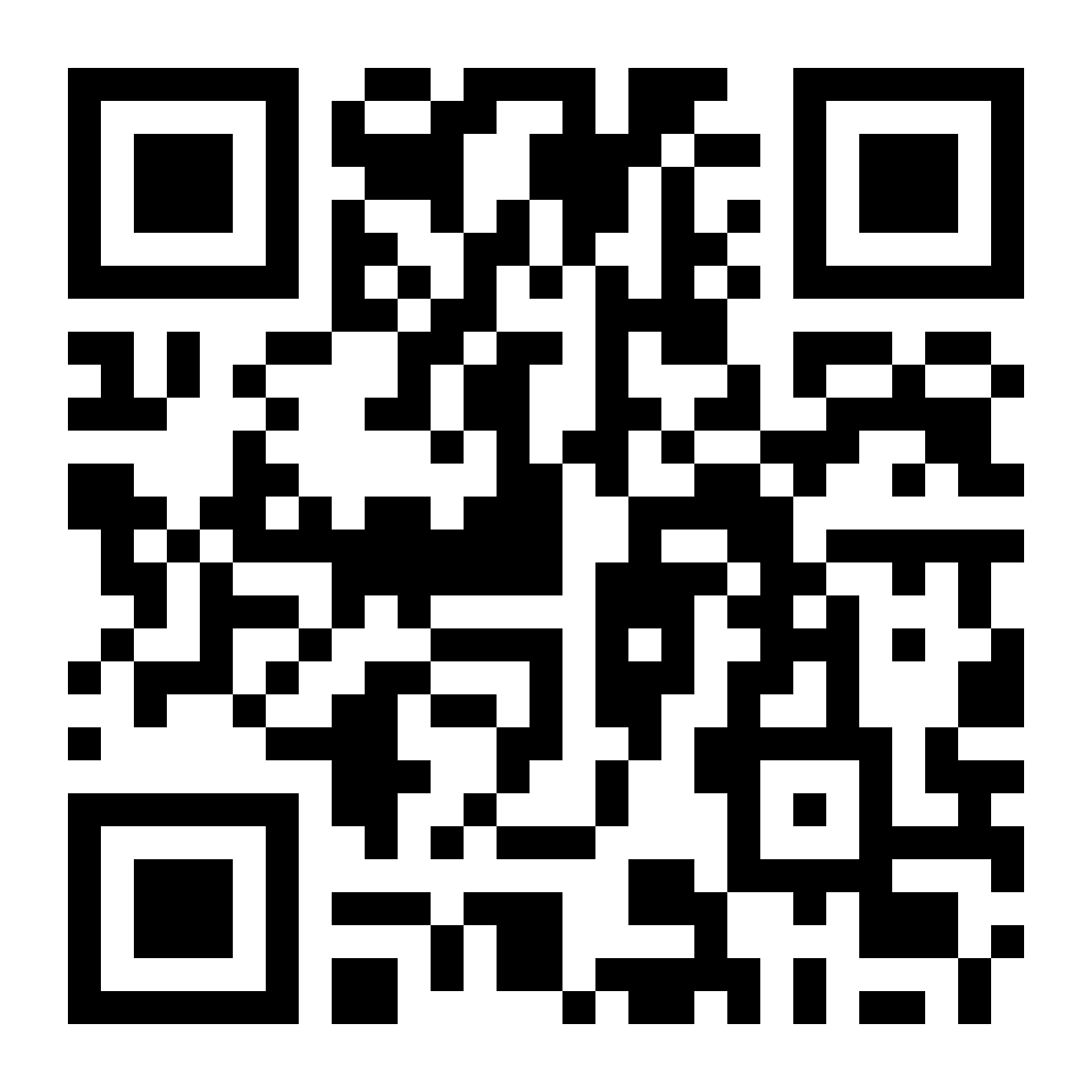
Scan to download
 Aster AI for iOS
Scan to download
 Aster AI for Android
Scan to download
Scan to download
the Aster AI app
 Download for
iOS
Download for
iOS Download
for Android
Download
for Android